

A Telegram account can be connected while a particular channel is not being monitored. And even when messages are monitored, that does not confirm they are routed to the MT5 account you intend to use. These are separate checks: Telegram access and channel monitoring on one side, account routing and readiness on the other.
This guide walks through those checks in order, then shows how to trace a new message toward its broker outcome. The goal is to verify the setup—not to assume that a connection, a saved setting or a processing status means a trade was placed or filled.
1. Check the Telegram connection and channel access
Start by confirming that the intended Telegram source is accessible to the connected account. AutoMetaTrade’s Telegram connection guide describes one personal Telegram connection per workspace; bot connections are separate. For personal-account sources, membership and synchronization matter: if a channel is missing, confirm membership and sync before proceeding. A connected account card alone does not establish that messages from a particular channel are arriving. (Telegram connection guide)
Next, verify the selected source. Personal-account users choose signal channels, sync when needed, review their selection and save it. Check the current receive source and monitoring health independently; do not treat successful Telegram sign-in as proof that the intended channel is monitored. The channel guide also describes accessible bot sources as a separate way to receive messages. (Channel setup guide)
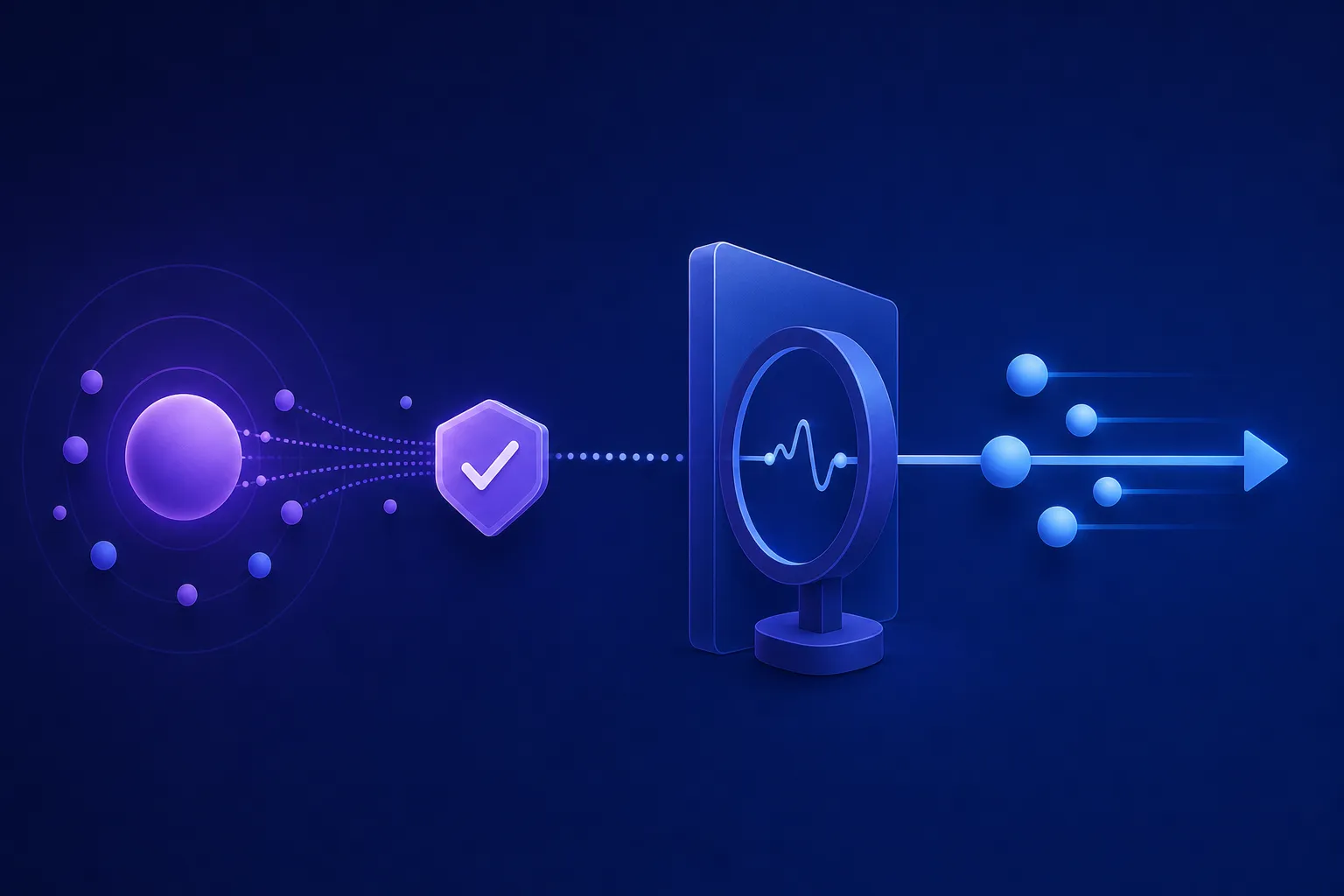
A practical check is to name the source you expect, confirm it is accessible, and make sure that exact source is selected and saved. If the expected channel is absent, investigate access and synchronization rather than adding an unrelated source or assuming the existing connection covers it. If a save result is uncertain, refresh and inspect the current selection before repeating the change. The channel documentation specifically advises refreshing unconfirmed saves or reviewing individual batch results before trying again. (Channel setup guide)
2. Verify which MT5 accounts receive the channel
A channel’s receiving-account list determines where its messages are directed. In channel Setup, review the receiving accounts, check additions or removals, and save the changes. A channel can be associated with zero, one or several MT5 accounts. With no receiving accounts, it may monitor messages without trading; saving the channel itself does not place an order. (Channel setup guide)
That makes it important to verify the actual destinations rather than infer routing from the channel name or from an account’s connection status. For each intended destination, confirm that the correct account is included, and check that an unintended account has not been selected. Channel destinations choose receiving accounts; they do not replace the account’s own Trading Profile. Symbols, sizing, stop-loss/take-profit rules and trading hours belong to that profile rather than to separate channel-account rules. (Channel setup guide)
Then check each receiving account’s readiness and applied profile. Account connection requires an available MT5 slot, account number, trading password and the exact broker server. Terminal credentials can differ from broker website credentials, and an investor password cannot execute orders. The connection guide also requires live accounts to use MT5 hedging mode. Review the account’s readiness and applied Trading Profile after connecting; connecting the account does not select its Telegram sources. (MT5 connection guide)
A saved profile is not necessarily the profile currently in effect. Each account uses one active profile, and saving a new version does not automatically replace an applied version. Review the confirmed version and wait for the profile to show as applied before treating it as the account’s active configuration. Channel routing and profile confirmation answer different questions: where a message is sent, and which confirmed account settings govern its handling. (Trading Profiles guide)
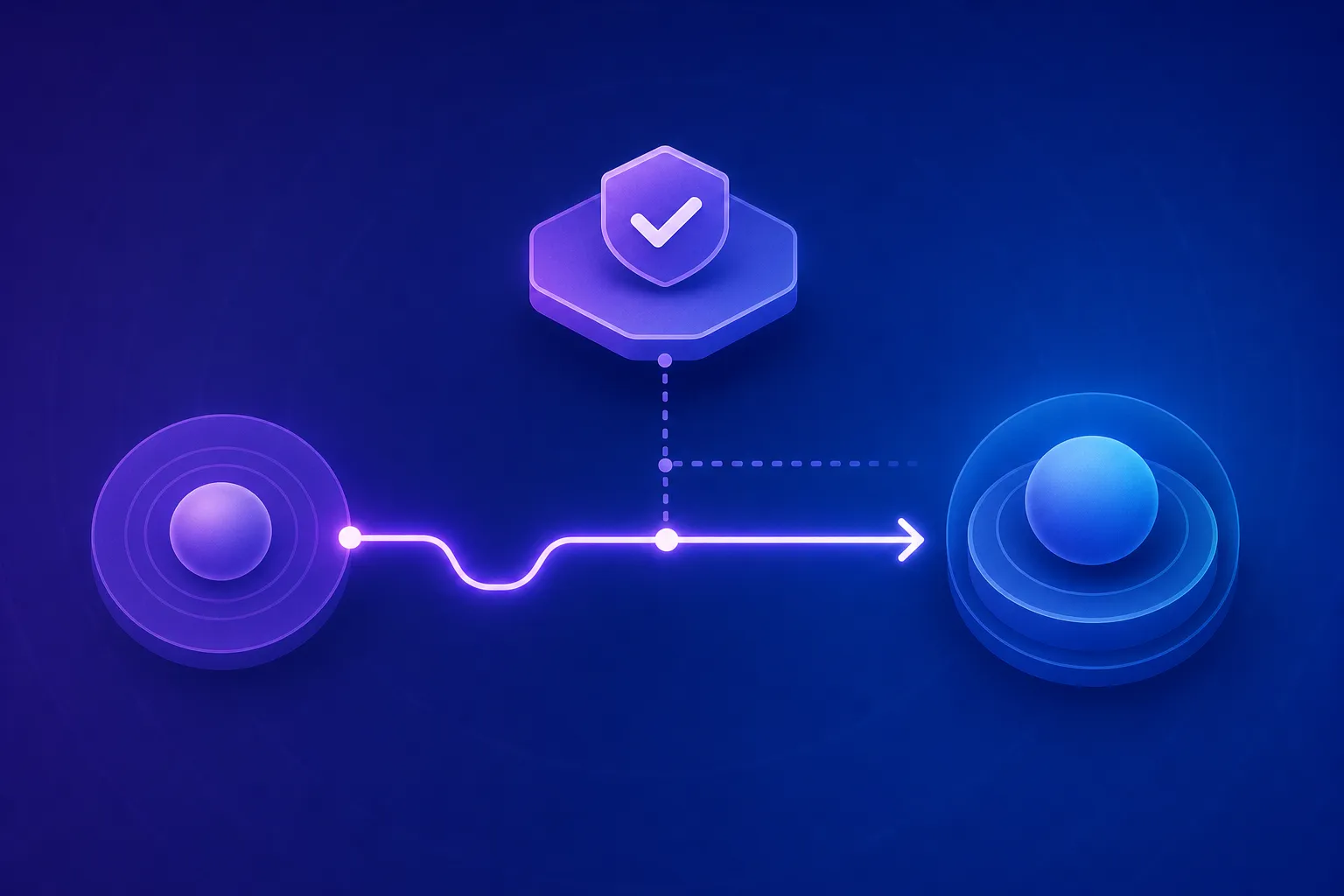
For a careful first check, the documented quick-start workflow recommends one Telegram source, one demo MT5 account and one confirmed Trading Profile. It also separates account connectivity, profile confirmation, source routing and execution controls as distinct items to check. This helps isolate a routing problem from an account or profile issue. A healthy Telegram connection by itself does not establish trading readiness. (Quick-start guide)
3. Follow a new message through the records
Once the source and receiving account are checked, trace a new message rather than relying only on setup screens. Find it in Signal Log using the correct source, time and filters. If the message is absent, check source access, Telegram connectivity and channel monitoring. If it appears, inspect the original content, edits and processing reasons. The documented reasons can include missing required levels, an unsupported format or price tolerance. (Signal troubleshooting guide)
For a message that was received, check each receiving account’s routing, readiness, execution controls and the profile version used for that signal. This helps distinguish “the source was monitored” from “the intended account was ready to process this message.” A completed processing status is not proof of a broker fill. In Execution History, inspect the requests, placed orders and fills to understand what happened at each stage. (Signal troubleshooting guide)
In particular, a successfully placed pending order may remain unfilled. Do not interpret an order request or placement as evidence that the broker executed it. Check Positions and the execution details as separate records, and compare them with the broker terminal when you need to establish the broker-side outcome. (Signal troubleshooting guide)
4. Handle uncertain results without duplicating actions
If a connection, save or execution result is interrupted or unclear, inspect the current state before repeating the operation. For uncertain account-connection changes, the MT5 guide says to inspect the saved account before retrying. For unclear channel saves, refresh and review the current result. The quick-start workflow likewise advises refreshing uncertain setup results before creating another connection or repeating an operation. (MT5 connection guide; Channel setup guide; Quick-start guide)
For an uncertain or interrupted trade outcome, refresh Trading and Positions and compare the broker terminal before retrying. A timeout does not establish failure, so repeating an action immediately could be based on an incomplete picture. A Signal Tester result also does not verify that a message was ingested or routed through a channel. (Signal troubleshooting guide)
A concise verification sequence
Before relying on a channel-to-account route, confirm each link in the chain:
1. The intended Telegram connection can access the source, and the channel is selected and saved. 2. Monitoring is checked independently from connection status. 3. Channel Setup lists the intended receiving MT5 account or accounts. 4. Each account is connected and ready, with the intended Trading Profile version confirmed as applied. 5. A new message can be located in Signal Log and its processing details reviewed. 6. Execution History, Positions and, when necessary, the broker terminal are checked separately to establish the outcome. 7. Uncertain results are refreshed and inspected before any retry.
Each step answers a different question. Telegram connectivity does not prove monitoring; monitoring does not prove account routing; routing does not prove readiness; and a processed signal or placed pending order does not by itself prove a fill. For more setup guidance, visit AutoMetaTrade and consult the linked documentation for the specific connection, channel, profile or execution check you need.