
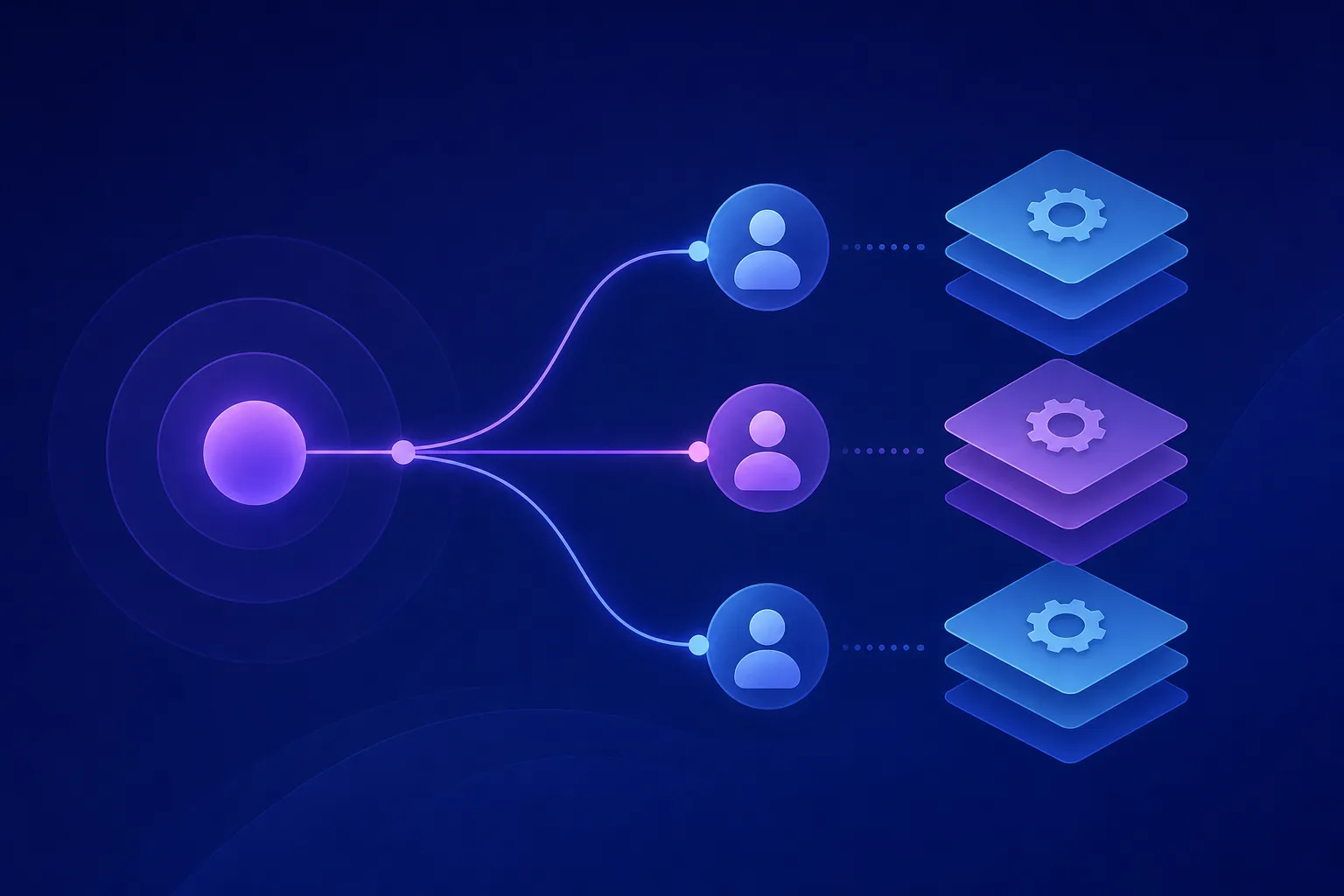
Telegram channel settings vs MT5 Trading Profile settings
A Telegram channel and an MT5 Trading Profile control different parts of AutoMetaTrade’s workflow. The channel determines where a Telegram source is monitored and which MT5 accounts are selected to receive its signals. Each receiving account, in turn, uses its own confirmed Trading Profile for settings such as symbol handling, sizing, stop-loss and take-profit rules, and trading hours.
That distinction matters when reviewing a setup. A channel can be connected and monitoring messages while an account is not ready to act on them. Conversely, an account can have a confirmed profile without being selected as a destination for a particular channel. To diagnose unexpected behavior, check the source, route, account, and profile as separate parts of the process.
What the Telegram channel controls
A channel connects a Telegram receive source with zero, one, or several MT5 accounts. The source might be a signal channel available through an authorized Telegram account or an accessible bot. Channel setup lets you choose the receiving accounts for that source. If no receiving accounts are selected, the channel can monitor messages without routing them to an account for trading.
This makes channel settings the place to check when a message is not reaching the intended account. Confirm that the correct source is selected, that monitoring is healthy, and that the intended account is included among the channel’s receiving accounts. Channel monitoring and account readiness are separate checks: seeing a connected Telegram account does not by itself confirm that messages from a particular channel are arriving.
AutoMetaTrade’s channel setup documentation describes the source and receiving-account workflow. For an overview of the product, visit AutoMetaTrade.

What the MT5 Trading Profile controls
The Trading Profile belongs to an MT5 account. It governs settings used to interpret and manage signals for that account, including parsing, sizing, order rules, and position management. In the documented setup, symbols, sizing, stop-loss and take-profit rules, and trading hours are profile settings—not separate rules attached to each channel-account pairing.
This means the same Telegram source can be routed to multiple accounts without making their settings identical. Each destination account retains its own confirmed profile. If a signal appears to be handled differently on two accounts, compare the profiles confirmed for those accounts rather than assuming the channel has separate sizing or symbol rules for each destination.
A profile also has distinct stages. Editing settings does not apply them. Saving creates a version, but a newly saved version does not automatically replace the version already applied to an account. The documented process is to save the version, apply it to the intended account, wait for confirmation, and verify which version is confirmed. The Trading Profiles documentation explains this separation.

Review and change a channel’s receiving accounts
When you need to check or update routing, start with the channel’s setup rather than changing a Trading Profile. Review the current receive source and the accounts selected to receive its signals. If you add or remove destinations, review the changes and save them. For batch changes, check the result of each account change rather than assuming all changes succeeded together.
A saved routing change is not an order instruction and does not place a trade. It changes which accounts are associated with the channel. After saving, check the channel’s monitoring status and independently review the readiness of each destination account. If a save result is unclear, inspect the current setup before repeating the change; the documentation advises refreshing or checking individual results when a save is unconfirmed.
Keep the two questions separate: “Is this channel monitored and routed to the intended account?” and “Is that account ready to process a signal under its confirmed profile?” A positive answer to one does not establish the other.
Verify each account and its confirmed profile
For each receiving account, review account connectivity and readiness, then confirm the Trading Profile version applied to it. Do not treat a profile that is merely saved—or settings currently visible in an editor—as proof of what the account is using. The confirmed account version is the relevant setting to check when investigating account-specific behavior.
Profile changes also have limits. According to the documentation, confirmed management changes affect managed open positions on subsequent checks, but they do not resize existing orders or repeat completed partial closes. This is another reason to verify the specific change and account state rather than infer what happened from the profile’s current editor settings.
The MT5 connection guide covers account connection and readiness. Connecting an account does not choose its Telegram sources, just as selecting an account as a channel destination does not establish that the account’s connection and profile are ready.
A practical setup sequence
For a new or recently changed setup, review each layer in order:
1. Confirm that the Telegram receive source is connected and accessible, and that the relevant channel is selected and monitored. 2. Open the channel’s setup and check that the intended MT5 account is listed as a receiving account. Review and save any routing changes. 3. Check that the account is connected and ready. Confirm the Trading Profile version applied to that account, rather than relying on an unsaved edit or a newly saved version. 4. If you are verifying the full signal path, follow a new source message through Signal Log, execution details, and Positions. Check the result for each receiving account separately.
This sequence follows the separation between source monitoring, routing, account readiness, and profile application described in AutoMetaTrade’s quick-start guide. A healthy Telegram connection alone does not confirm trading readiness.
Troubleshoot a signal that does not behave as expected
If a message appears in a Telegram channel but the intended account does not show the expected result, work through the stages rather than changing settings at random:
- Check whether the message was received. In Signal Log, use the correct source, time, and filters. If the message is absent, investigate source access, Telegram connectivity, and channel monitoring.
- Review how the message was processed. Inspect the original content, edits, and any processing reasons. Required levels, unsupported formats, or price tolerance can affect processing. Parsing support depends on configuration and capability; not every language, layout, image-only signal, or management phrase is universally supported.
- Confirm routing for the specific account. Check that the account is currently selected as a receiving account for that channel. Do not assume that another account’s route applies to it.
- Check account state and the profile version used. Review readiness and the confirmed profile for that account. A different profile can produce different account behavior even when the source is the same.
- Distinguish processing from a broker outcome. A completed processing status does not prove a broker fill. In Execution History, inspect requests, placed orders, and fills. A pending order can be placed without being filled.
- Refresh before repeating an uncertain action. Check Trading and Positions and compare with the broker terminal before retrying. A timeout does not establish that an operation failed, and repeating it without checking could duplicate an action.
The signal troubleshooting guide provides the staged checks for tracing a message from receipt to broker outcome. The central rule is simple: channel settings determine the source and destinations; each destination account’s confirmed Trading Profile determines its own trading rules. Checking both layers—plus monitoring and account readiness—gives a clearer explanation than treating the channel and profile as interchangeable.