
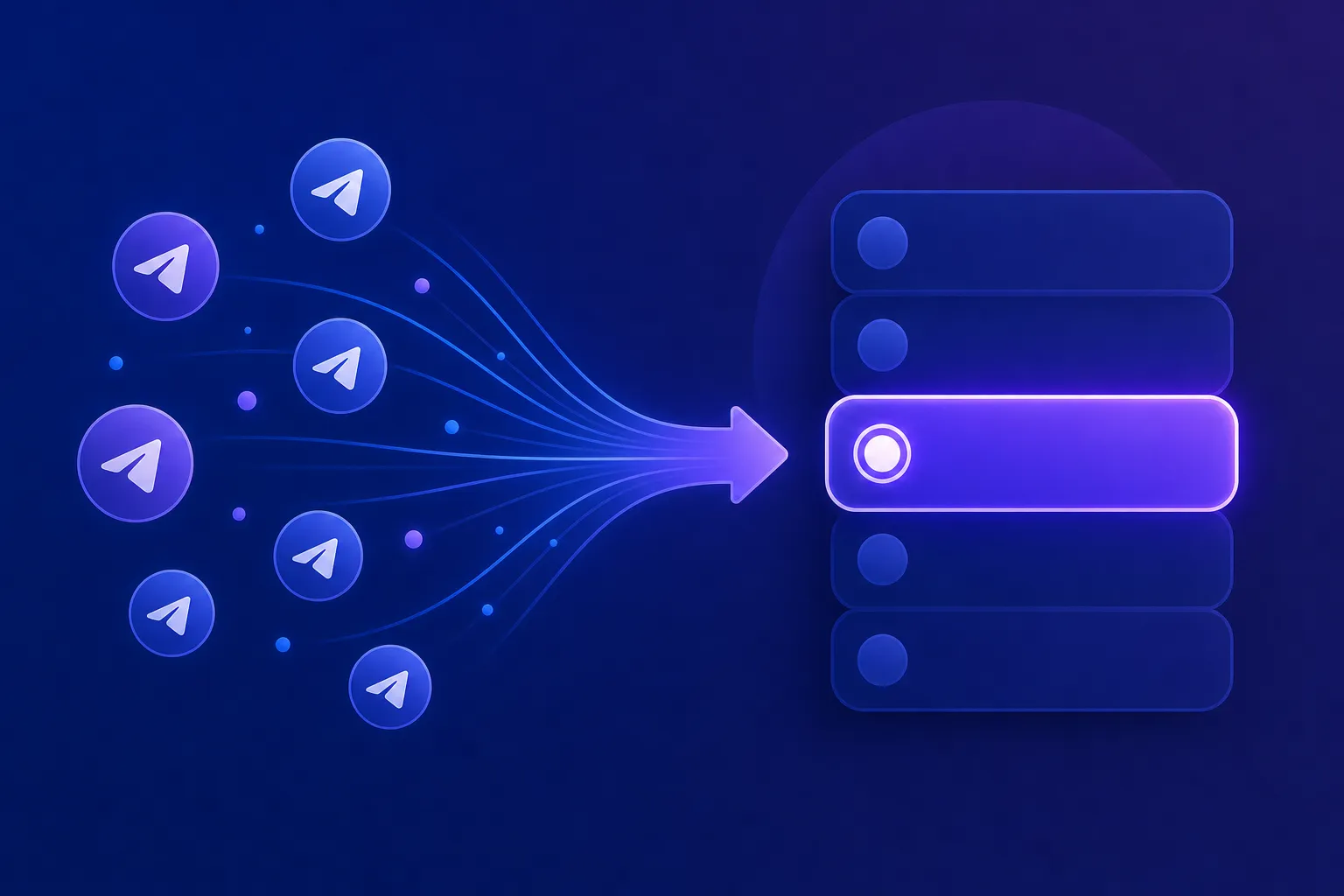
A Telegram account can be connected to AutoMetaTrade while a particular channel is still missing from your selected sources—or while its messages are not being monitored. Connection, channel access, channel selection and monitoring are separate checks. Confirming one does not automatically confirm the others.
Use the steps below to identify where the gap is before changing MT5 account routing. The channel-selection process described here is for a personal Telegram connection. Bot connections are separate, and the available setup depends on the connection type.
1. Check that the connected Telegram account can access the channel
Start with the Telegram account you connected to AutoMetaTrade. It needs access to the intended source. If the channel is not visible among the sources you can choose, confirm that this Telegram account is a member of the channel. Connecting a different Telegram account—or connecting successfully without joining the channel—does not give the connected account access to it.
This is a useful first check because a successful connection only confirms that the account connection exists. It does not establish that the connected account can see every channel you may follow elsewhere in Telegram. If you recently joined the channel, check its availability again after confirming membership.
AutoMetaTrade’s Telegram connection documentation explains that, after connecting, users select signal channels and check monitoring separately. It also specifically recommends confirming membership and syncing when channels are missing. Keep Telegram verification codes and passwords in the connection form; do not include them in support messages or screenshots.
2. Sync the channel list, then select the intended source
For a personal Telegram connection, channel selection is a distinct step after connecting. Sync the list when needed, review the available sources, select the intended signal channel and save the selection. A channel that exists in Telegram is not necessarily already selected in AutoMetaTrade.

Treat the list as a source-selection step, not as proof that a channel is already being monitored. Check that the source you intended to add is actually included in the selection before saving. If it is absent from the available list, return to the access check: confirm you are using the intended connected Telegram account and that it can access the channel, then sync again.
The documented workflow is to connect an authorized Telegram account or accessible bot first. For personal-account users, it then calls for selecting signal channels, syncing when needed, reviewing the selection and saving. The Channels setup guide describes this sequence and the separate channel Setup area.
3. Save, then check monitoring separately
After reviewing the selection, save it and check whether monitoring is healthy. Do not treat a connected Telegram account card as confirmation that messages from a particular channel are arriving. AutoMetaTrade documents Telegram connection status and channel monitoring as separate checks: a connected account does not establish that channel messages are being received.
That distinction helps narrow down the problem. If the intended channel was missing from the selectable list, focus on account access and syncing. If it was selected and saved but messages are not arriving, check monitoring health and source access instead of repeatedly changing the selection.

A saved channel selection also does not, by itself, place an order. In channel Setup, receiving MT5 accounts are configured separately. A channel can have zero, one or several receiving accounts; with none, it can monitor messages without trading. If your goal is only to confirm that a source is available or monitored, avoid adding an MT5 destination as a substitute for fixing source visibility or monitoring.
4. Keep source monitoring separate from MT5 routing
When a channel is visible and monitoring appears healthy, but you are investigating what happens to a message, check the stages independently. The source determines which Telegram messages are received. Receiving-account settings determine which MT5 accounts are destinations. Each destination account has its own readiness and confirmed Trading Profile.
The channel setup documentation says to configure receiving accounts in channel Setup, review additions and removals, save, and then check each account’s applied profile and readiness. It also distinguishes channel destinations from Trading Profile settings: symbols, sizing, stop-loss and take-profit rules, and trading hours belong to the account’s profile, not to separate channel-account rules.
So, if your channel is missing from the source list, do not start by changing its MT5 receiving accounts or profile. Those settings address routing and account behavior, not whether the connected Telegram account can access and select the source. If you do make a channel change but the save result is unclear, inspect the current setup or individual results before repeating the change.
5. If messages still do not arrive
Once you have confirmed access, synced and saved the source selection, and checked monitoring, investigate a missing message using its source and time. AutoMetaTrade’s signal troubleshooting guide recommends finding the message in Signal Log with the correct source, time and filters. If it is absent, check source access, Telegram connectivity and channel monitoring. If it is present, inspect the original content, edits and processing reasons, then check the receiving account’s routing, readiness, execution controls and profile version.
This sequence prevents two different issues from being mistaken for one another: a message not being received from Telegram, and a received message not producing the expected MT5 outcome. A processing status alone does not prove that a broker filled an order. For an uncertain outcome, refresh Trading and Positions and compare with the broker terminal before retrying; a timeout does not establish that an operation failed.
For a concise review, use this order:
1. Confirm the connected Telegram account is the one with access to the intended channel. 2. Confirm channel membership and sync the personal Telegram channel list when needed. 3. Review and save the intended channel selection. 4. Check monitoring independently from Telegram connection status. 5. Only then review receiving-account routing and account readiness if the concern is what happens after a message arrives.
The key is to troubleshoot the stage that is actually missing. A Telegram connection is not the same as source access; source access is not the same as a saved channel selection; and selection is not the same as monitoring or MT5 routing. For more setup guidance, visit the AutoMetaTrade documentation.