
Disconnecting Telegram from AutoMetaTrade can be the right step when you no longer want a personal Telegram account connected to a workspace, need to resolve an authentication issue, or are changing how a channel receives messages. Before confirming, check which channels rely on that connection: a channel that uses the disconnected source needs a working connection to receive future messages.
This is a connection change, not a way to confirm whether an MT5 account is ready or whether a particular trade was placed. Telegram connection, channel monitoring, account routing and MT5 readiness are separate things to check. Use the steps below to review the likely impact and verify the result without exposing your Telegram credentials.
1. Identify what uses the Telegram connection
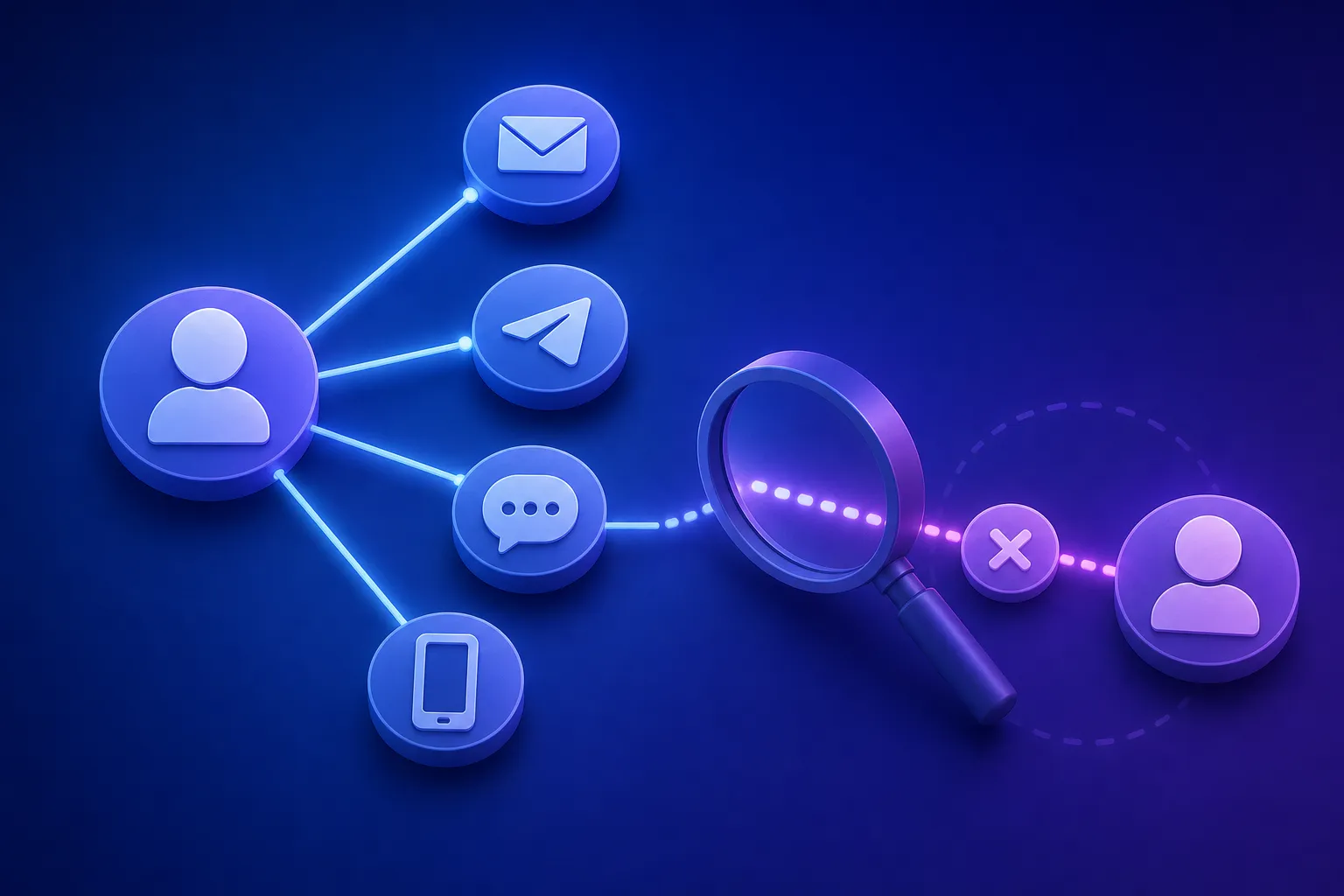
AutoMetaTrade manages one personal Telegram connection per workspace. Bot connections are separate, and having several MT5 accounts does not require several personal Telegram accounts. A channel is associated with a Telegram receive source and can be configured to send messages to zero, one or multiple MT5 accounts.
Before disconnecting, review the channels that use the personal account you plan to remove. Establish which source each channel receives from and whether the channel is intended to keep monitoring messages. A connected Telegram account card alone does not show that messages are arriving; connection status and channel monitoring are distinct checks.
If future monitoring matters, confirm that the relevant channel has a working receive source. AutoMetaTrade supports connecting an authorized Telegram account or an accessible bot as a source. Do not assume that another source is already connected or that changing a source has taken effect: check the channel’s current setup and monitoring state. For details on how channel sources and receiving accounts are handled, see the channel setup documentation.
If you are disconnecting because a channel is missing, first check whether the Telegram account has access to it and whether the channel list needs to be synced. Disconnecting without checking can interrupt future messages from channels that depend on that source.
2. Review the impact before confirming
Use the Telegram connection controls in AutoMetaTrade to begin the disconnect flow. Review the impact shown there before proceeding. The documented confirmation requires typing DISCONNECT. Treat that word as a deliberate confirmation, not as a routine form field: pause if you are unsure which connection or dependent channels will be affected.
The key practical question is whether any channel needs this personal Telegram source for future messages. If it does, make sure you understand the source arrangement before confirming. Channel configuration and MT5 account configuration are separate: a channel’s receiving-account settings do not, by themselves, verify the account’s readiness or its applied Trading Profile. Likewise, connecting Telegram does not prove that a channel is monitoring successfully.
If you are unsure about a change or its result, inspect the current state before repeating the operation. The connection documentation recommends reviewing the impact and typing DISCONNECT to confirm; it does not mean that a channel’s future monitoring has been checked automatically. For a broader overview of the product and its documented workflows, visit AutoMetaTrade.
3. Confirm the disconnection and check monitoring separately
After confirming, check the Telegram connection state in the workspace. Then inspect the monitoring state of each channel that matters. Do not treat one check as proof of the other: a disconnected personal account and a channel’s monitoring status are separate pieces of information. If a channel no longer has a working source, it will need a working connection to receive future messages.
If the disconnect result is unclear, refresh or revisit the connection state before trying again. Avoid creating repeated connection changes based only on an uncertain screen or delayed response. If the personal account needs authentication again, the documented path is to reconnect through connection maintenance. Follow the displayed instructions for the intended country and phone number, and enter a verification code only in the connection form when prompted. Telegram may request a two-step verification password; supply it only when Telegram asks for it.
4. Keep credentials out of support messages
Verification codes and passwords belong in the connection form, not in a support message, screenshot or other shared record. The Telegram connection guide explicitly advises keeping them out of support messages. If you need help diagnosing a connection or monitoring issue, describe the state you see without sending codes, passwords or other authentication details.
Also avoid sharing MT5 credentials while discussing a Telegram disconnection. Telegram sign-in and MT5 account connection are separate setups. A Telegram connection change does not, by itself, establish the state of an MT5 account, its routing or its execution readiness. Check those separately if they are relevant to your issue.
A safe disconnect checklist
Before confirming, identify the personal Telegram connection and the channels that use its source. Decide whether those channels need to receive future messages, and check that any source intended to remain in use is actually available and selected. Review the impact in AutoMetaTrade, then type DISCONNECT only when you are ready to proceed.
Afterward, verify the Telegram connection state and check monitoring for the relevant channels independently. If authentication is required again, use connection maintenance and enter codes or passwords only when requested in the connection flow. This sequence helps avoid confusing a connection change with a channel-monitoring check—and keeps sensitive credentials out of support conversations.
For the official connection steps and security reminders, consult Connect Telegram and distinguish connection from monitoring.