

Connecting Telegram to AutoMetaTrade is only one part of setting up a message source. It does not, by itself, select the channels you want to monitor or confirm that messages from them are arriving. Those steps are separate from connecting an MT5 account, choosing which accounts receive signals, and confirming that the accounts are ready.
This guide explains how to connect a personal Telegram account, select signal channels, and check monitoring as distinct steps. The sequence matters: if a message does not appear later, you can investigate source access and monitoring separately from MT5 routing and execution.
Before you connect: confirm access to the Telegram source
First, make sure the Telegram account you intend to connect has access to the signal source. If the channel is not available to that account, connecting Telegram will not make it available. When a channel is missing from the available list, the documented checks are to confirm membership and sync the channel list.
AutoMetaTrade supports separate connection types for personal Telegram accounts and bots. The dashboard manages one personal Telegram connection per workspace; bot connections are separate. You do not need a separate personal Telegram account for each connected MT5 account. These distinctions help avoid a common misconception: adding another MT5 account does not mean you must add another personal Telegram login.
The Telegram connection guide describes the personal-account connection and its verification steps. For a broader setup overview, see the quick-start workflow, which recommends beginning with one Telegram source and one demo MT5 account.
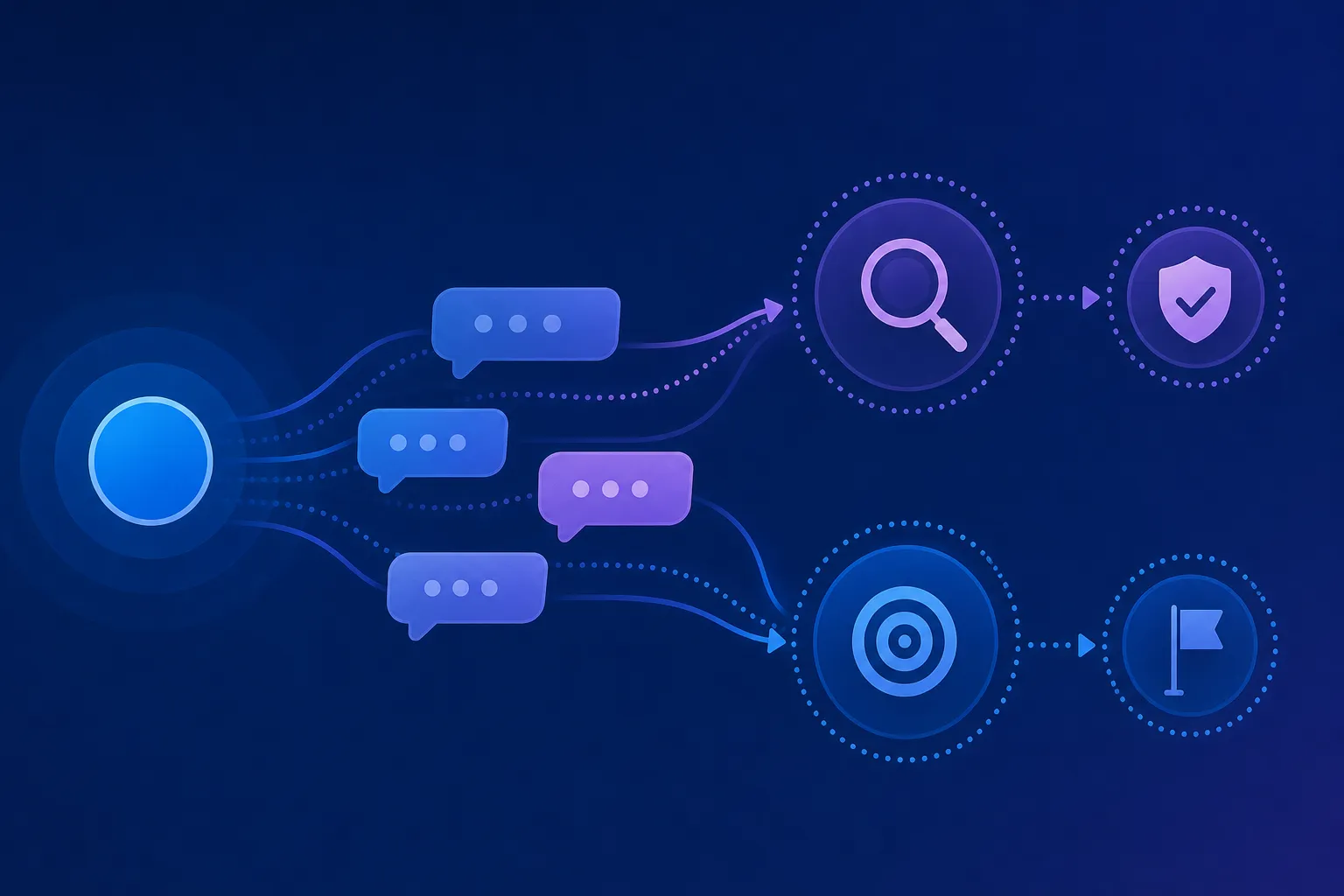
Connect a personal Telegram account
Use the Telegram connection process in the dashboard and enter the country and phone number for the account you intend to use. Follow the verification-code delivery instructions shown during connection, then enter the code in the connection form. Telegram may request a two-step verification password; provide it only if Telegram asks for it.
Keep verification codes and passwords in the connection form. Do not include them in support messages or screenshots. These credentials are sensitive, and the connection guide specifically advises against sharing them in support communications.
After the verification steps, check the connection status shown in the dashboard. A connected account card confirms a connection state; it does not establish that a particular channel has been selected or that its messages are being received. Treat connection and monitoring as separate checks rather than assuming one proves the other.
If authentication is required later, use connection maintenance to reconnect. Avoid making a second connection simply because the result of an earlier action is unclear. The documented guidance is to inspect the saved connection or refresh its state before repeating an uncertain operation.
Select signal channels after connecting
Once the personal Telegram account is connected, choose the signal channels you want to use. For personal-account users, the documented channel setup flow is to select signal channels, sync when needed, review the selection, and save it. Syncing can help when an expected channel is not listed, but first confirm that the connected Telegram account is a member of that channel.
A saved channel selection is not the same as proof that messages are arriving. Check the channel’s monitoring state separately. The channel setup documentation distinguishes the Telegram receive source from the receiving MT5 accounts and recommends verifying the current source and monitoring health independently from account readiness.
That separation is useful when troubleshooting. A working Telegram connection does not confirm that the intended source is monitored. Likewise, monitoring a source does not establish that it is routed to an MT5 account or that the account can execute trades.
Check monitoring and account routing independently
After choosing a source, verify that monitoring is active for the intended channel. Then, if you want messages routed to an MT5 account, check that account as a separate part of setup. Channel configuration determines which receiving accounts are associated with a source; an account’s Trading Profile and readiness are separate checks.
The quick-start documentation recommends checking account connectivity, the confirmed Trading Profile, source routing, and execution controls separately. It also notes that connecting an account does not choose its Telegram sources. In other words, completing one connection does not automatically finish the rest of the workflow.
A channel can also monitor messages without sending them to an MT5 account if it has no receiving accounts configured. Saving channel settings does not place an order. These details matter when confirming what a setup is intended to do: source monitoring, account routing, and order execution are distinct stages.
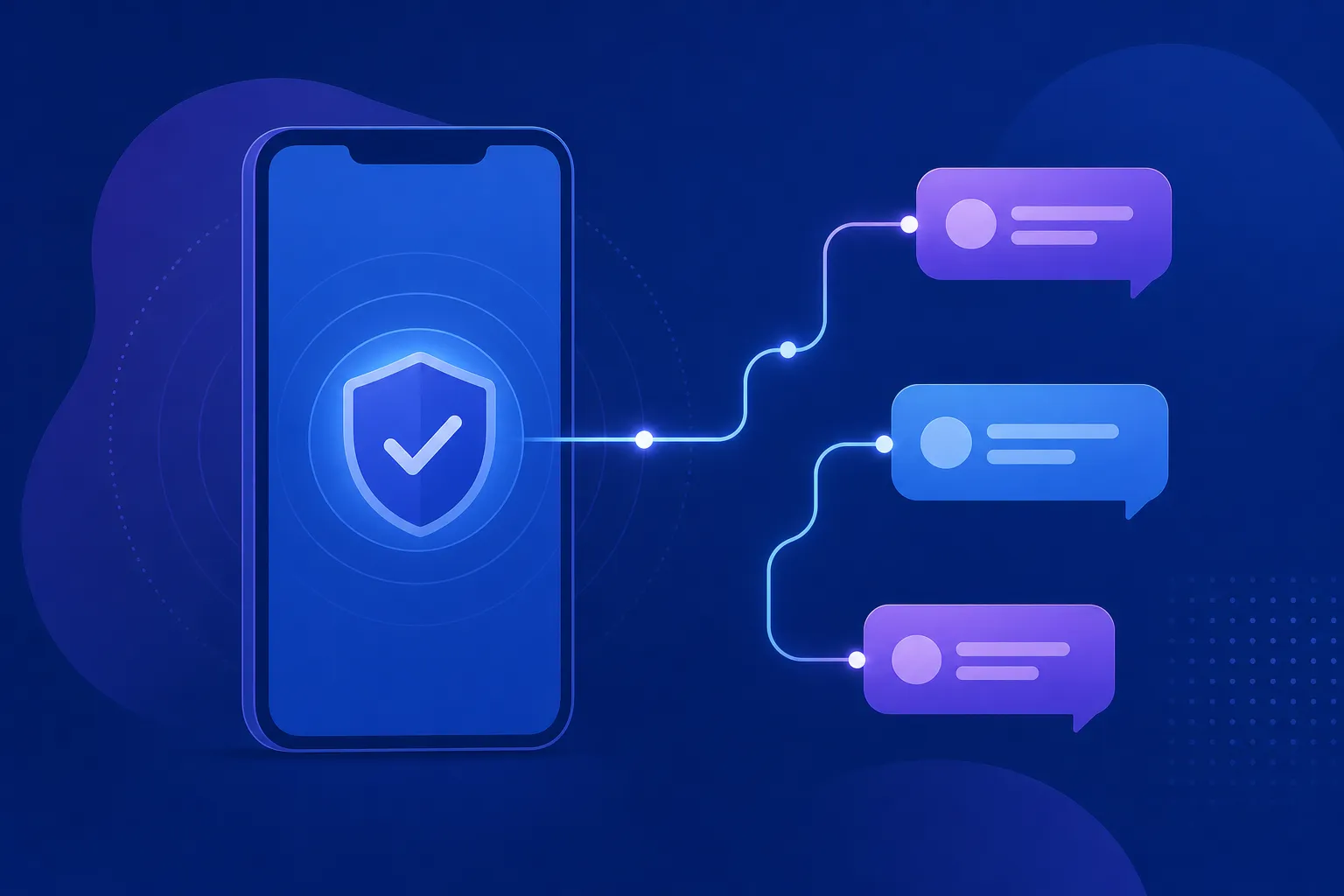
If a channel is missing or messages are not appearing
If you cannot find a channel, confirm that the connected Telegram account has access to it and sync the channel list when needed. Review the selected channels after syncing and save the intended selection. If authentication is requested, reconnect through the connection-maintenance process rather than sharing credentials outside the form.
If the channel is selected but a new message does not appear in the expected workflow, investigate in stages. Check Telegram connectivity and channel monitoring first. Then confirm the message is present in Signal Log using the relevant source and time. If it is present, the next checks include the receiving account’s routing, readiness, execution controls, and the profile version applied to that account.
A completed processing status is not proof of a broker fill. The signal troubleshooting guide advises checking execution details and Positions, and comparing with the broker terminal before retrying when an outcome is uncertain. A timeout alone does not establish that an operation failed, so refreshing and inspecting the current state is safer than repeating an action blindly. See the signal troubleshooting guide for the documented investigation sequence.
A reliable connection checklist
Use this sequence to keep the setup checks clear:
1. Confirm that the Telegram account can access the intended source. 2. Connect the personal account using the intended country and phone number, then follow the displayed code instructions. 3. Enter a two-step verification password only if Telegram requests it, and keep credentials out of support messages. 4. Select the signal channels, sync if needed, review the selection, and save it. 5. Check channel monitoring independently; do not treat a connected account card as confirmation that messages are arriving. 6. If messages should reach MT5, verify receiving-account routing, account readiness, and the confirmed Trading Profile separately.
This sequence helps distinguish a Telegram connection problem from a channel-selection issue or an MT5 routing issue. For information about AutoMetaTrade and its setup documentation, use the official product and documentation sites.